How to Use the Weekly Meal Calendar
Last updated: 2026-03-20
Quick Answer
The weekly meal calendar is the heart of the Family Values meal planner at familyvalu.es. It gives you a clear Monday-through-Sunday view of every planned meal, organized by course. Use the navigation arrows to move between weeks, check the summary bar for a snapshot of your plan, and hit "Today" to jump back to the current week at any time.
Step-by-Step Walkthrough
-
Open the Meal Planner by visiting /meal-planner in Family Values. The weekly calendar occupies the left side of the page.
-
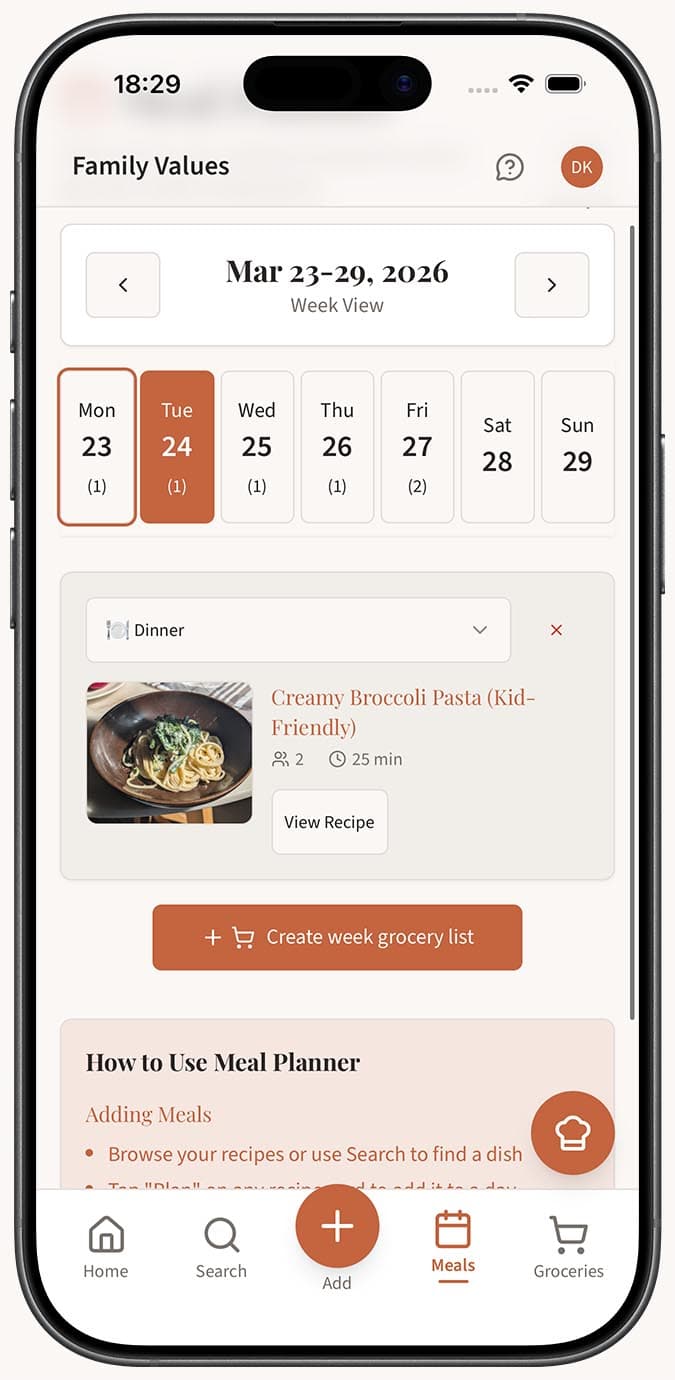
Understand the layout. Each day from Monday to Sunday has its own section, and within each day you'll see three course slots: Breakfast, Lunch, and Dinner. Planned meals appear as cards inside the appropriate slot.
-
Navigate between weeks using the left and right arrow buttons at the top of the calendar. Click the left arrow to go to the previous week or the right arrow to move to the next week.
-
Jump to the current week at any time by clicking the "Today" button. This is especially handy if you've scrolled several weeks ahead while planning and want to get back to what's happening now.
-
Review meal cards on the calendar. Each card shows the recipe name, cook time, and servings. This gives you a quick snapshot of what's planned without opening any recipe.
-
Check the week summary displayed at the top of the calendar area. It shows four key stats: Total Meals planned for the week, Unique Recipes used, Total Servings across all meals, and Total Cook Time for everything combined.
- Remove a meal if plans change by clicking the X icon on any meal card. You'll see a confirmation prompt, and once confirmed, a toast notification will let you know the meal has been removed.
Tips
- Use the week summary to get a realistic sense of your cooking workload. If the total cook time looks overwhelming, consider swapping in a quicker recipe or two.
- Navigating ahead a few weeks is great for planning around holidays, special events, or vacations.
- The "Today" button is your anchor. No matter how far you've navigated, one click brings you right back.
- On mobile, the calendar shifts to a stacked vertical layout. Each day is displayed in a scrollable list, making it easy to review and manage meals on a smaller screen.
- Empty course slots are perfectly fine. Not everyone plans breakfast or lunch -- focus on the meals that matter most to your routine.
Related Questions
Frequently Asked Questions
Related Articles
How to Plan Meals for the Week
Learn how to use the Family Values meal planner to organize breakfast, lunch, and dinner for the entire week in one simple view.
How to See What's Planned for Each Day
Learn how to quickly view your planned breakfast, lunch, and dinner for any day using the Family Values weekly meal calendar.
Can I Plan Meals for More Than One Week Ahead?
Find out how to use the Family Values meal planner to plan meals multiple weeks in advance by navigating between weeks.