Comment créer et gérer des listes de courses
Dernière mise à jour : 2026-03-20
Réponse rapide
Family Values vous offre un gestionnaire de listes de courses complet sur familyvalu.es. Vous pouvez créer autant de listes que nécessaire, ajouter et modifier des articles, renommer des listes et les supprimer lorsque vous n’en avez plus besoin. Tout se trouve sur la page /shopping-lists, avec une barre latérale pour naviguer entre les listes et un panneau principal pour gérer les articles.
Guide étape par étape
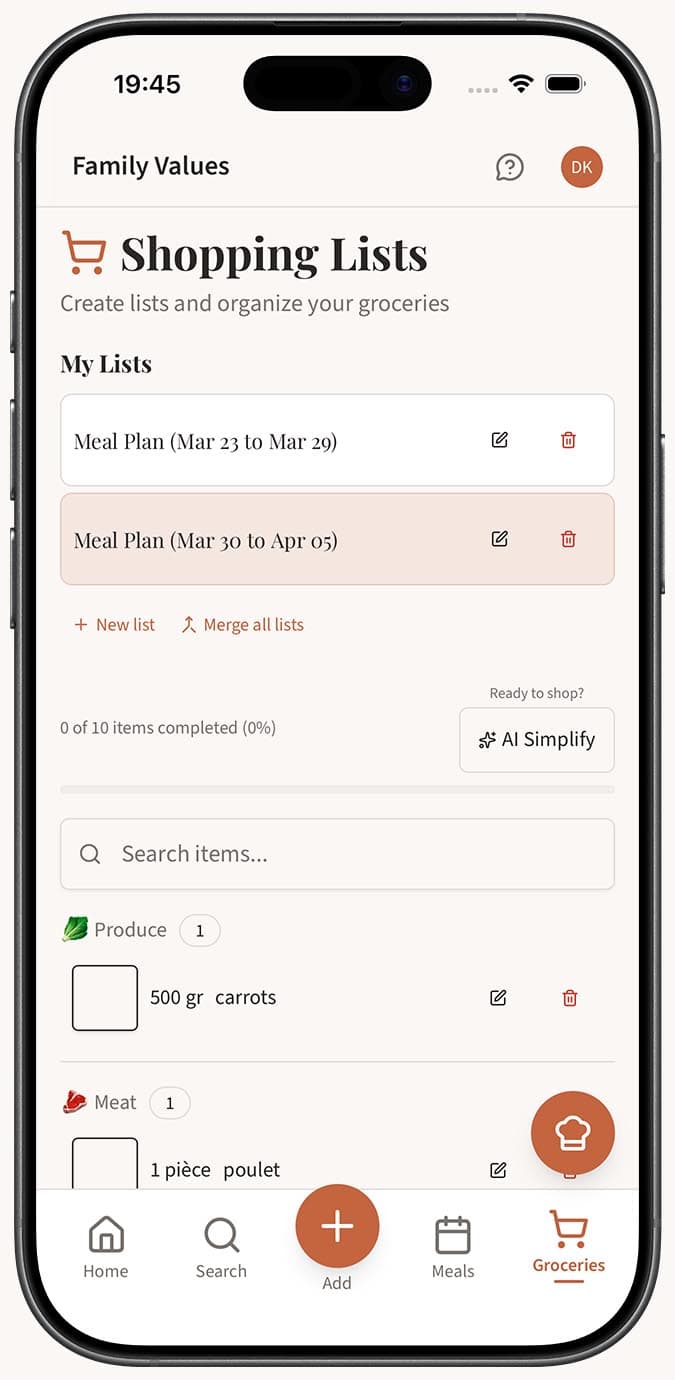
- Accédez à la page /shopping-lists dans Family Values. À gauche, vous verrez une barre latérale affichant toutes vos listes de courses existantes avec leurs noms et le nombre d’articles.
-
Créez une nouvelle liste en cliquant sur le bouton "Nouvelle liste" en haut de la barre latérale. Il vous sera demandé de saisir un nom pour votre liste. Entrez un nom descriptif comme "Courses de la semaine" ou "Fournitures pour la fête", puis confirmez. Une notification toast confirmera que votre liste a bien été créée.
-
Sélectionnez une liste en cliquant sur son nom dans la barre latérale. Le panneau de droite affichera tous les articles de cette liste, ainsi qu’une barre de recherche, une barre de progression et des boutons d’action.
-
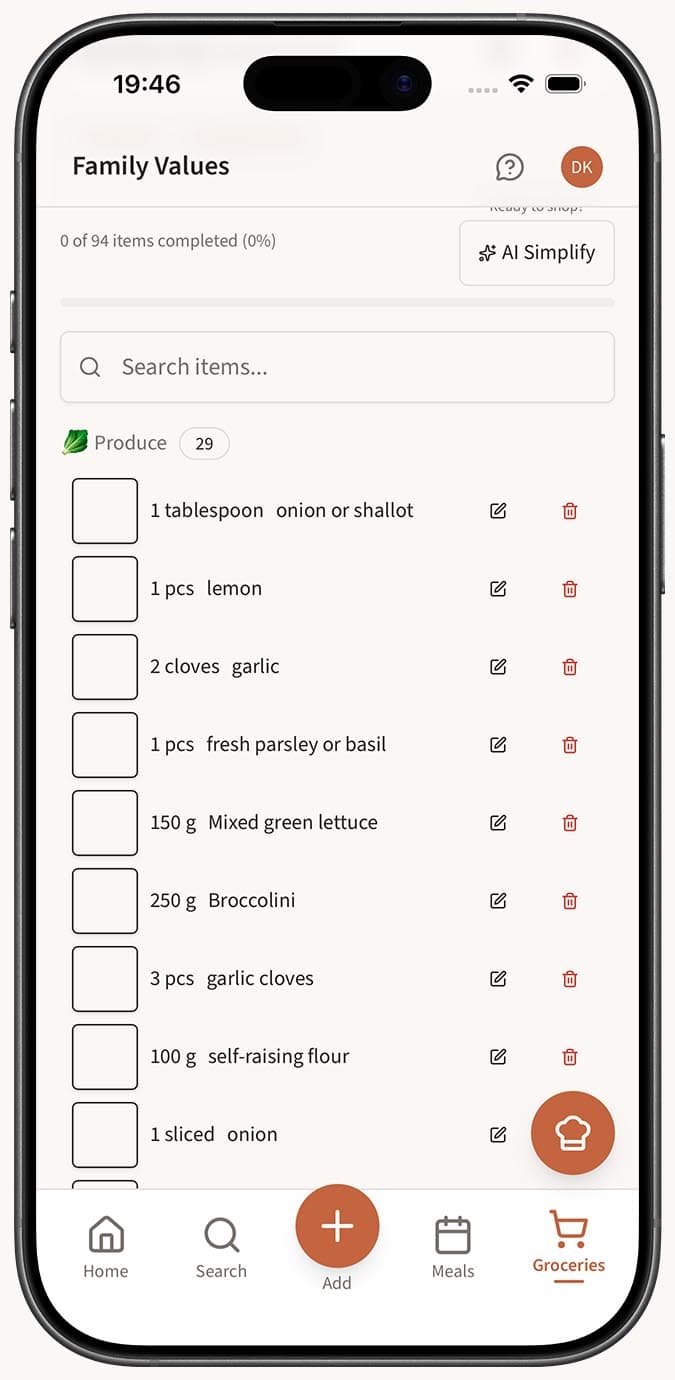
Ajoutez des articles à l’aide du formulaire "Ajouter un article" en haut du panneau de la liste. Saisissez le nom de l’article (obligatoire), puis ajoutez éventuellement une quantité et une unité. L’article est enregistré automatiquement une fois ajouté.
-
Renommez une liste en cliquant sur l’icône en forme de crayon à côté du nom de la liste. Modifiez le nom directement sur place, puis confirmez pour enregistrer.
-
Supprimez une liste en cliquant sur le bouton de suppression à côté d’elle dans la barre latérale. Une boîte de dialogue de confirmation s’affichera pour éviter toute suppression accidentelle. Une fois confirmée, la liste et tous ses articles sont supprimés définitivement.
-
Fusionnez toutes les listes en cliquant sur le bouton "Fusionner toutes les listes" si vous souhaitez tout regrouper dans une seule liste. Cela crée une liste nommée "Liste fusionnée" contenant tous les articles de chaque liste. Notez que cette action est irréversible.
Conseils
- Gardez des listes séparées pour différents magasins ou différentes sorties courses. Par exemple, conservez une liste pour votre supermarché habituel et une autre pour un magasin spécialisé.
- Utilisez la barre de recherche dans une liste pour trouver rapidement des articles précis lorsque votre liste devient longue.
- Sur mobile, la barre latérale devient un tiroir qui glisse depuis le côté. Appuyez pour l’ouvrir, sélectionnez une liste, puis le tiroir se referme pour afficher vos articles en plein écran.
- Si le nom d’une liste n’est plus à jour, renommez-la avec l’icône en forme de crayon plutôt que d’en créer une nouvelle -- vos articles restent intacts.
Questions connexes
Foire aux questions
Articles associés
Comment générer une liste de courses à partir de votre plan de repas
Découvrez comment générer automatiquement une liste de courses consolidée et classée par catégories à partir de votre plan de repas hebdomadaire dans Family Values.
Comment ajouter manuellement des articles à votre liste de courses
Découvrez comment ajouter manuellement des articles à n’importe quelle liste de courses dans Family Values avec des noms, quantités et unités personnalisés.
Puis-je avoir plusieurs listes de courses ?
Découvrez comment Family Values prend en charge plusieurs listes de courses afin que vous puissiez organiser vos achats par magasin, occasion ou semaine.