How the Automatic Grocery List Works
Last updated: 2026-03-20
Quick Answer
When you generate a grocery list from your meal plan in Family Values at familyvalu.es, the app does more than just dump every ingredient onto a page. It reads every recipe on your calendar, scales ingredient quantities based on your chosen servings, merges duplicate ingredients across recipes, and organizes everything into grocery store categories. The result is a clean, shop-ready list you can take straight to the store.
Step-by-Step Walkthrough
Here's what happens behind the scenes when you click the shopping cart button in the meal planner:
-
Ingredient extraction -- Family Values reads every recipe assigned to your weekly meal plan and pulls out the full ingredient list from each one, including the item name, amount, and unit of measurement.
-
Serving-based scaling -- Each recipe's ingredients are scaled according to the number of servings you set when adding it to the calendar. If you planned a soup recipe for 8 servings but the original recipe serves 4, every ingredient amount is doubled.
-
Duplicate merging -- The app scans all extracted ingredients and identifies duplicates across different recipes. If three recipes call for olive oil, the quantities are combined into a single line item rather than appearing three separate times.
-
Category assignment -- Each item is automatically assigned to a grocery category based on what it is. Chicken goes under Meat (🥩), milk under Dairy (🥛), flour under Baking (🧁), and so on. This grouping matches how most grocery stores are laid out.
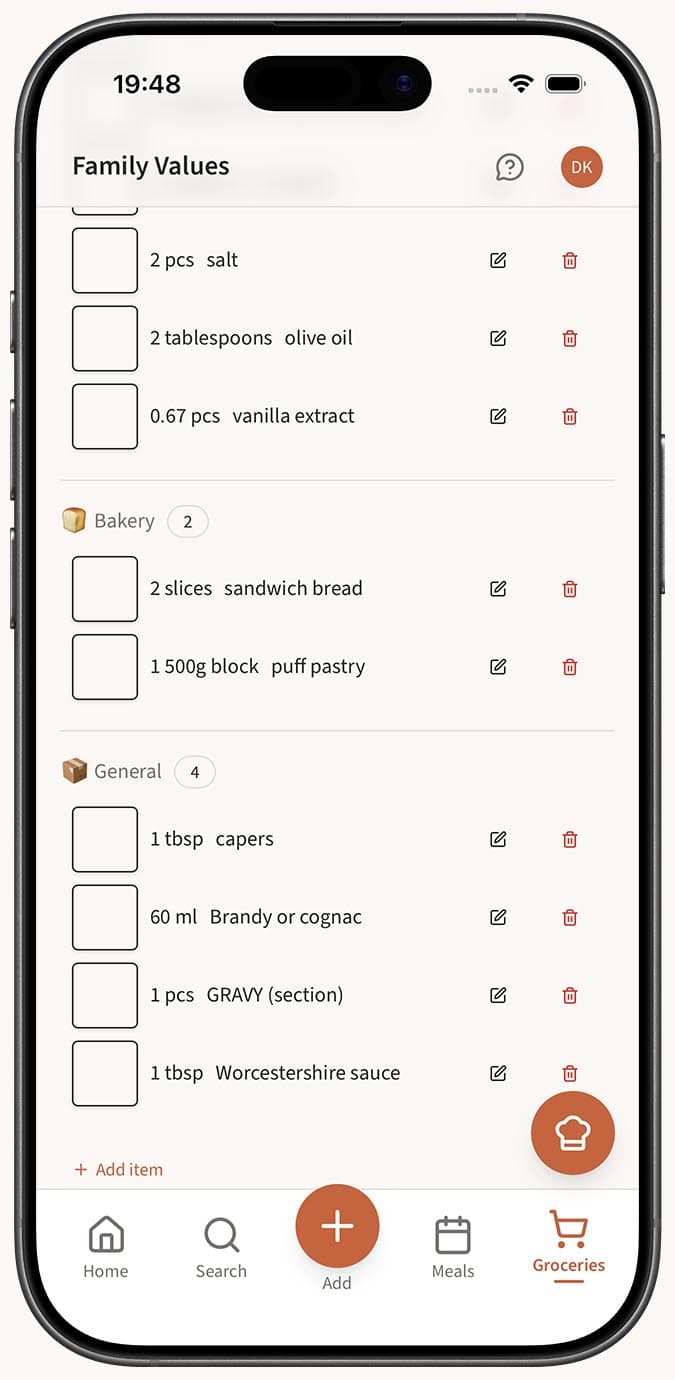
- List creation -- The final consolidated list is saved as a new shopping list named "Meal Plan (date to date)" and appears on your /shopping-lists page, ready for you to use.
Tips
- The automatic generation handles the heavy lifting, but you can always fine-tune the result. Remove items you already have at home, adjust quantities, or add extras like snacks and beverages.
- For the cleanest results, make sure your recipes have well-structured ingredients with specific amounts and units. The AI Importer does a great job of this when you first save recipes.
- After generating, try AI Simplify for an extra layer of cleanup. It normalizes units, rounds amounts to grocery-friendly quantities, and catches any duplicates the initial merge might have missed.
- The list preserves your original recipes untouched. Generating a grocery list never modifies the recipes themselves.
Related Questions
Frequently Asked Questions
Related Articles
How to Generate a Grocery List from Your Meal Plan
Learn how to automatically generate a consolidated, categorized grocery list from your weekly meal plan in Family Values.
What Is AI Simplify on the Grocery List?
Learn how the AI Simplify feature in Family Values cleans up your grocery list by merging duplicates, normalizing units, and fixing categories.