How to Check Off Items While Shopping
Last updated: 2026-03-20
Quick Answer
While you're at the store, Family Values at familyvalu.es makes it easy to track your progress. Open your shopping list on the /shopping-lists page, tap the checkbox next to each item as you add it to your cart, and watch the progress bar update in real time. Checked items get a strikethrough so you can see at a glance what's left to grab.
Step-by-Step Walkthrough
-
Open your shopping list on the /shopping-lists page in Family Values. If you're on your phone, tap the list selector to open the drawer and choose the list you're shopping from.
-
Browse your items which are organized by category with helpful emoji labels -- Produce (🥬), Meat (🥩), Dairy (🥛), and more. This grouping matches typical grocery store layouts, so you can work through categories as you move through the aisles.
-
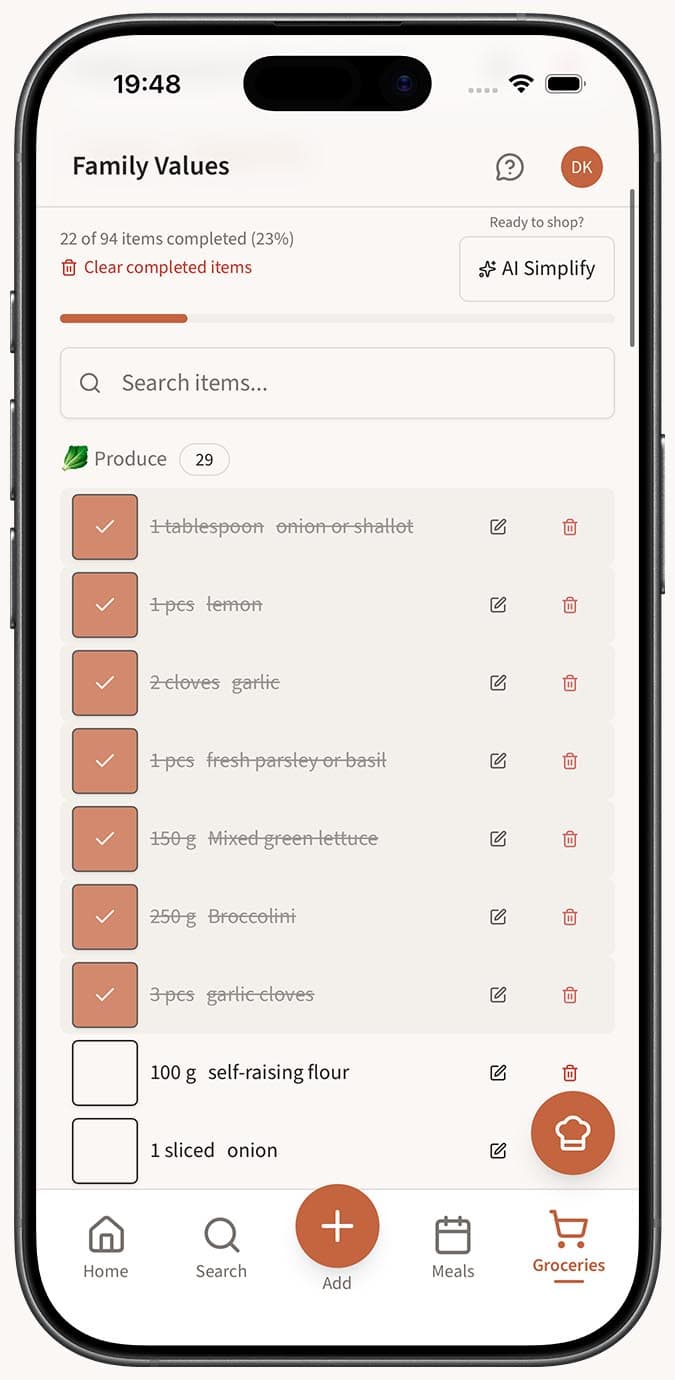
Tap the checkbox next to an item when you pick it up. The item immediately gets a strikethrough style to visually distinguish it from items still to buy.
-
Watch the progress bar at the top of your list. It updates instantly and displays a message like "8 of 15 items completed (53%)" so you always know how far along you are.
-
Continue shopping through each category, checking off items as you go. If you accidentally check something off, tap the checkbox again to unmark it.
-
Finish up when the progress bar hits 100%. All your items are checked, and you're ready to head to checkout.
Tips
- Use the search bar at the top of your list to quickly find a specific item if you spot something on the shelf and want to check it off without scrolling.
- Items are grouped by category, so navigate to the relevant section as you enter each aisle. This saves time compared to jumping around the list randomly.
- The progress bar is a great motivator, especially on longer shopping trips. Watching the percentage climb keeps you focused and aware of what's left.
- On mobile, the list takes up the full screen for comfortable one-handed tapping while pushing a cart.
- After your trip, use "Clear completed items" to clean up your list so only unbought items remain for next time.
Related Questions
Frequently Asked Questions
Related Articles
How to Create and Manage Shopping Lists
Learn how to create, rename, delete, and manage shopping lists in Family Values to keep your grocery trips organized.
How to Clear Completed Items from Your Shopping List
Learn how to remove checked-off items from your shopping list in Family Values to keep your list clean and focused.