How to Change or Swap a Planned Meal
Last updated: 2026-03-20
Quick Answer
Plans change, and your meal plan should be easy to update. In Family Values at familyvalu.es, you can remove any planned meal with a quick click and replace it by adding a different recipe to that same slot. There's no complicated editing -- just remove and re-add.
Step-by-Step Walkthrough
-
Open the Meal Planner at /meal-planner in Family Values.
-
Navigate to the week that contains the meal you want to change. Use the arrow buttons to move between weeks, or click "Today" to jump to the current week.
-
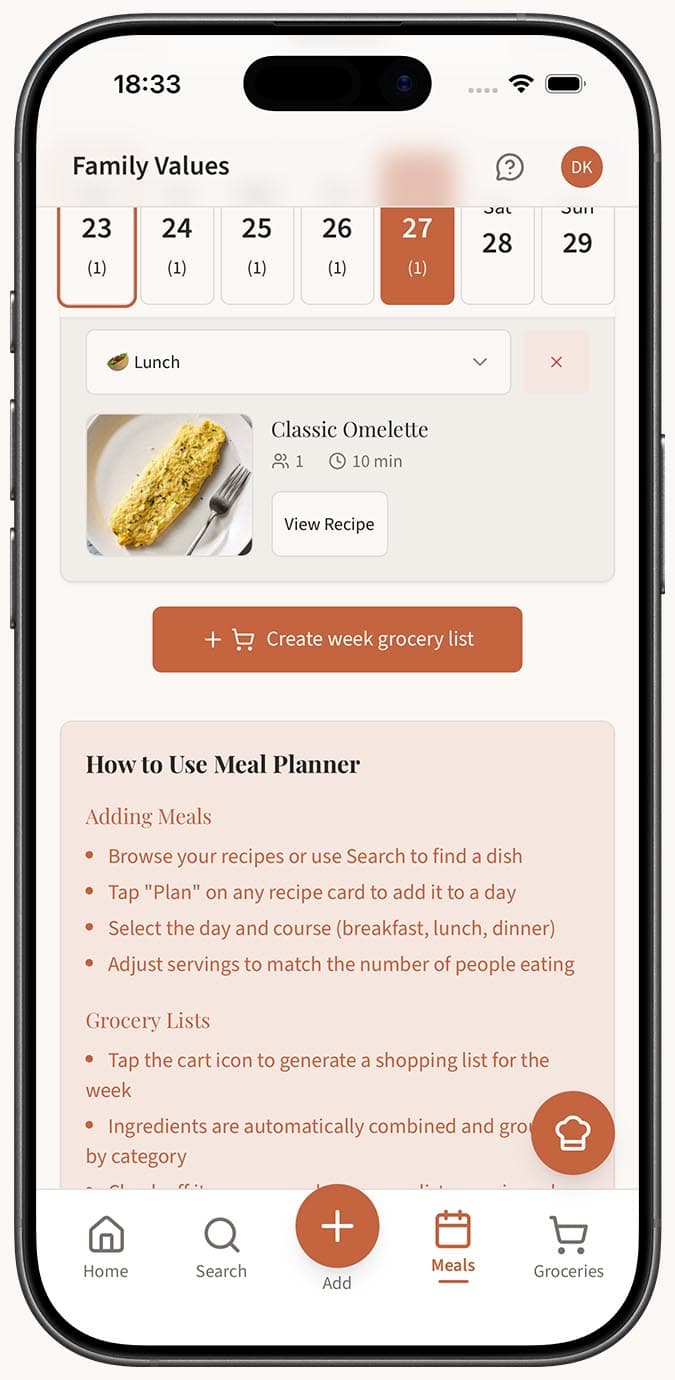
Find the meal you want to remove on the calendar. It will appear as a card under the appropriate day and course (breakfast, lunch, or dinner).
-
Click the X icon on the meal card. A confirmation prompt will appear to make sure you want to remove it.
-
Confirm the removal. A toast notification reading "Meal removed from plan" will appear, and the meal card will disappear from the calendar.
-
Add the replacement recipe by browsing or searching the recipe library on the right side of the page. Click "Plan" on the new recipe.
-
Select the same date and course as the meal you just removed (or choose a different day if you're rearranging). Adjust the servings and click "Add" to place the new recipe on your calendar.
-
Regenerate your shopping list if you had already created one. Click the shopping cart button to generate a fresh list that reflects the updated plan with correct ingredient quantities.
Tips
- If you're swapping a recipe for a similar one (say, one pasta dish for another), the shopping list changes may be minimal. Still worth regenerating to be safe.
- Changing your mind about a meal doesn't mean you need to redo the whole week. The rest of your plan stays exactly as it was.
- To swap a meal to a different day rather than a different recipe, just remove it from the original day and re-add the same recipe on the new day.
- If you find yourself frequently swapping the same meals, it might be worth building a go-to rotation of reliable recipes that your household consistently enjoys.
- The confirmation step before removal is there to protect you from accidental taps, especially on mobile where the X can be easy to hit.
Related Questions
Frequently Asked Questions
Related Articles
How to Add Recipes to Your Meal Planner
Step-by-step guide to adding recipes from your collection to specific days and courses in the Family Values meal planner.
How to Plan Meals for the Week
Learn how to use the Family Values meal planner to organize breakfast, lunch, and dinner for the entire week in one simple view.