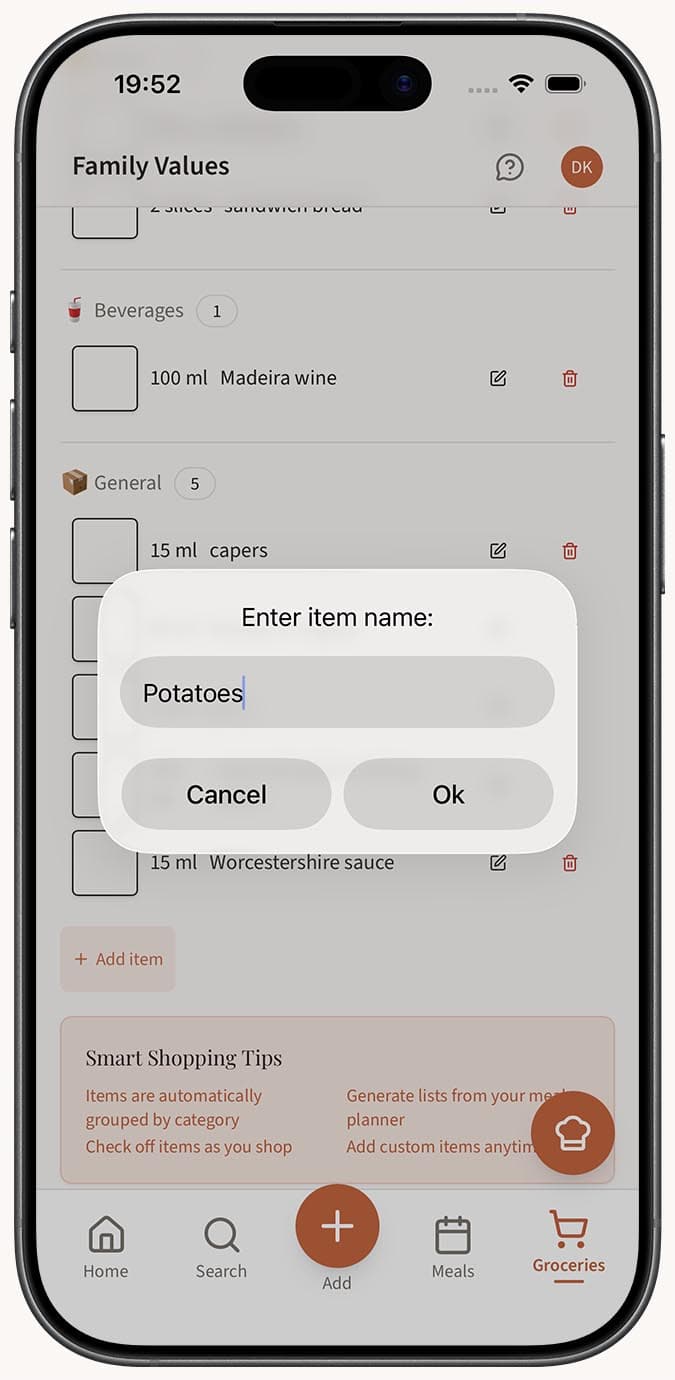
How to Add Items to Your Grocery List Manually
Last updated: 2026-03-20
Quick Answer
Even if you've generated a grocery list from your meal plan in Family Values at familyvalu.es, you'll often need to add extra items -- household staples, snacks, or things you've run out of. The /shopping-lists page has a simple "Add item" form at the top of every list where you can type in any item with an optional amount and unit.
Step-by-Step Walkthrough
-
Open the /shopping-lists page in Family Values and select the list you want to add items to. If you need a new list first, click "New list" in the sidebar.
-
Locate the "Add item" form at the top of the list panel. You'll see fields for the item name, amount, and unit.
-
Enter the item name in the name field. This is the only required field. Type something clear and specific, like "Cherry tomatoes" or "Whole wheat bread."
-
Add an amount (optional) in the amount field. Enter a number like "2" or "0.5" to specify how much you need.
-
Add a unit (optional) in the unit field. Type the unit of measurement such as "lbs," "cups," "oz," or "cans."
-
Submit the item and it will appear in your list immediately. The item auto-saves -- no need to click a separate save button.
-
Repeat for every additional item you need. Add as many items as you like, one at a time.
Tips
- Be specific with item names to avoid confusion at the store. "Unsalted butter" is more helpful than just "butter."
- You can skip the amount and unit for simple items. Adding "Bananas" without a quantity works perfectly fine -- you'll grab what looks right at the store.
- If you notice a mistake after adding an item, click on it to edit it inline. You can change the name, amount, or unit without deleting and re-adding.
- To remove an item you didn't mean to add, click the trash icon next to it.
- Manually added items are automatically placed into the appropriate grocery category. If you add "Cheddar cheese," it will appear under Dairy (🥛). If the app isn't sure, it'll go under General (📦).
- This is a great way to supplement auto-generated lists. Generate from your meal plan first, then add your extras on top.
Related Questions
Frequently Asked Questions
Related Articles
How to Create and Manage Shopping Lists
Learn how to create, rename, delete, and manage shopping lists in Family Values to keep your grocery trips organized.
How to Organize Grocery Items by Category
Learn how Family Values automatically groups your shopping list items into grocery store categories so you can shop aisle by aisle.